Advertising

Create QR Code for App Stores and Download the App

In the age of digital technology, smartphone apps are an integral part of our lives. Developers are always striving to improve the ways to access their new apps. One effective way to increase the reach of apps is by using QR Codes. In this article, we will discuss how to create a QR Code for your app store, and how to download the app using this code.

What is a QR Code?
A QR Code is a type of barcode that was developed in Japan in the mid-1990s. This type of code can be read at high speed by any device equipped with a camera and a suitable application. QR Codes are used to store information, such as links, text, or contact details.

Using QR Codes to promote your app is a simple yet effective strategy. By creating a QR Code, you can improve the reach of your apps and provide a seamless user experience. The proliferation of smartphones in our daily lives makes it easier for users to access information in a practical way, increasing the chances of downloading your apps and increasing your user base.

Benefits of Using QR Codes for Apps

  1. Ease of Access:
    A QR code helps users quickly access the details of the app, which increases the chance of downloading the app. Simply scan the code with your smartphone to access the store and download the app directly.
  2. Save Time:
    Instead of typing the URL or searching for the app in the store, users can simply scan the code and download it in seconds.
  3. Instant Engagement:
    Various information can be included in the QR code, such as links to social sites, offer pages, or even blogs. This enhances customer engagement and helps increase the user base.

How to Create a QR Code for an App Store
Step 1: Know the App URL
First of all, you need to get the direct URL link of your app on the app store (such as Google Play or Apple App Store). You can find this link by visiting the app page in the store and copying the link from the address bar of your browser.

Step 2: Use QR Code Generators
There are many tools available online to create QR codes for free. Some of these tools include:

GoQR.me: Another simple site that provides you with the ability to quickly generate a QR code.

Step 3: Enter the link and generate the code

Open the tool of your choice, and enter the URL of the application in the field provided.

Choose options such as colors and design (if the tool provides it).

Click on the “Generate” button to generate the QR code.

Step 4: Download the QR code
After generating the code, you will see the image of the QR code. You can download the image to your device. Make sure to save it in high quality to make it easier for phones to read.

Step 5: Use the QR code in promotional materials
You can now use your QR code in a variety of promotional materials such as:

Print ads (brochures, posters)

Websites

Email

Social media posts

How to download the app using a QR code

  1. Use a QR reader app
    To download the app using a QR code, you will need a QR reader app. Many new smartphones come with a QR scanning feature built into the camera app, but you can also download QR reader apps from the store, such as:

QR Code Reader (for iOS and Android)

Barcode Scanner (for Android)

  1. Scan the QR code
    Open the QR reader app on your device.

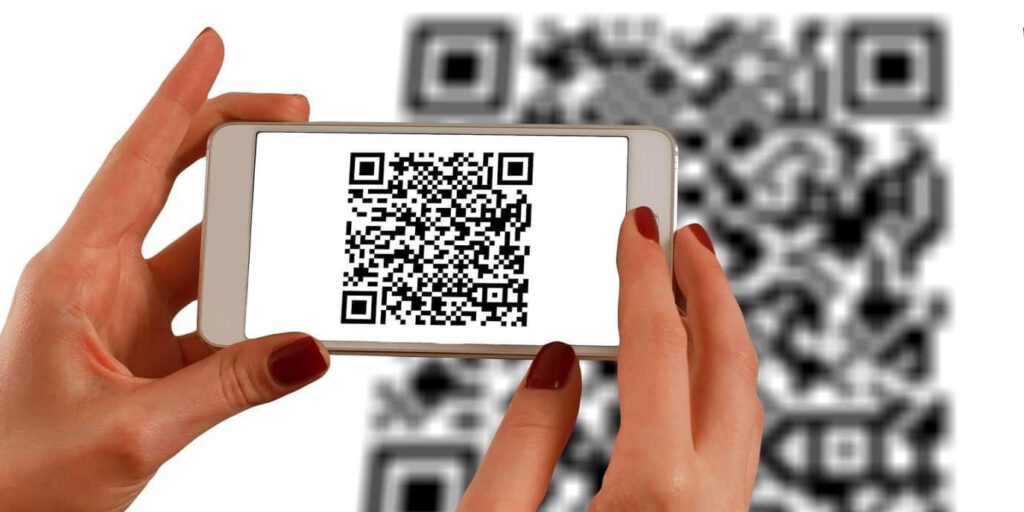
Point the phone’s camera to the QR code so that it recognizes it.

Make sure the code appears completely within the frame.

  1. Follow the instructions
    After scanning the code, you will see a message saying “Open link” or “Go to URL”. Tap that message.

You will be directed to the app’s page in the App Store.

Tap the “Download” or “Install” button to download the app to your device.

Conclusion
Using QR codes to promote your app is a simple yet effective strategy. By creating a QR code, you can improve the accessibility of your apps and provide a seamless user experience. The ubiquity of smartphones in our daily lives makes it easier for users to access information in a practical way, increasing the chances of downloading your apps and increasing your user base.
Digital Business Card: Easy Access to Numbers and Multiple Features

What is a digital business card?
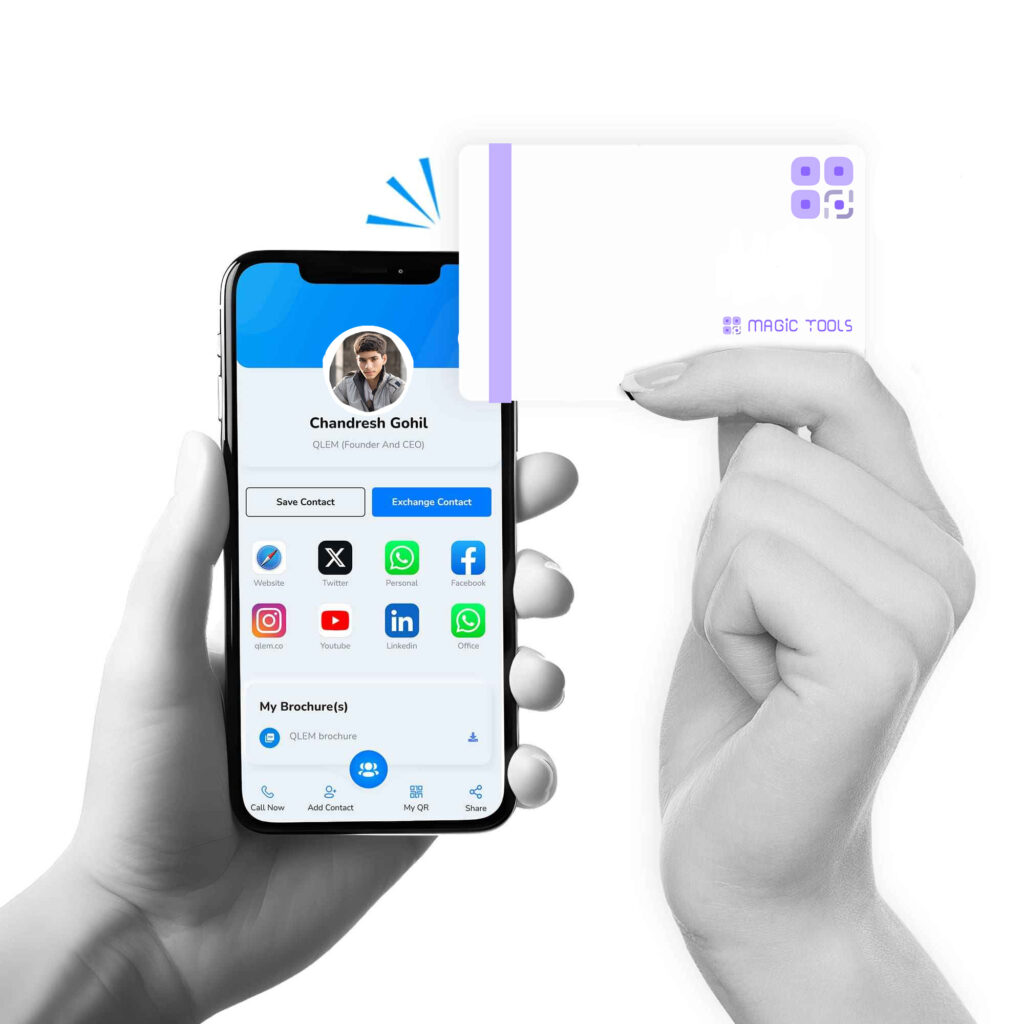
A digital business card is an innovative way to convey personal and professional information digitally. It allows you to share your contact details, such as name, job title, phone number, email, and a link to your online profile, in an easy and efficient way.

Easy access to numbers
A digital business card is always available on your smartphone or computer, making it easy to access anytime, anywhere. You can:

Features of a digital business card
Share information quickly: Instead of searching for traditional paper cards, you can simply send your digital card link easily via email or text message.

Update information easily: If your personal or professional information changes, you can update the card digitally without having to reprint new cards.

Customizable design:

You can choose a design that suits your personal identity or brand, making your card distinctive and attractive.

Add multimedia:

You can include links to media files, such as an introductory video, product images, or even samples of previous work, which enhances customer engagement with you.

Social media integration:

The ability to add links to your social media accounts, making it easier for others to follow you and stay in touch with you.

Tracking interactions:

Some digital business card services offer the ability to track how many people have interacted with your card and how many visits, helping you measure the effectiveness of your network.

Support for electronic payment systems:

You can integrate payment options within the card, making it easier for potential customers to make payments directly.

Environmentally friendly:

A digital card is a unique option to reduce paper usage, which helps protect the environment.

How to create a digital business card
Choose a platform to create the card: There are many platforms available, such as Canva, HiHello, and Linktree.

Customize the card design: Choose colors, fonts, and a layout that reflects your identity.

Add the necessary information: Enter all the details related to you, such as name, job title, contact information, and social media links.

Save and share the card: Once you are done, save the card and share it via email or on social networks.

Summary
A digital business card is a powerful tool in the modern business world. It provides you with an easy and effective way to communicate and build networks, which increases your chances of professional success. If you haven’t tried using a digital business card yet, it’s time to try this advanced technology and make more meaningful interactions in your field!

Post navigation

Animal Crossing How to Scan QR Codes for Clothing

Games like Animal Crossing feature the ability to customize clothing using QR codes, which allow players to download designs from other designers. Here’s more detail on how to scan these codes:

Step 1: Prepare your device
Choose the right device: Make sure you have a suitable device such as a game controller, smartphone, or tablet with an internet connection.

Download apps: You can download apps that can scan codes from the app store if the game doesn’t have the option built in.

Step 2: Open the game
Sign in: Log in to your in-game account. Make sure you’ve completed the level in the game that allows you to design clothes.

Go to the right area: Go to the design area or to the store where you can manipulate the clothes.

Step 3: Access the scanning option
Find the scanning option: In many games, you’ll find an option to “Enter Code” or “Scan Code,” which allows you to enter a QR code.

Check the options available: Some games may require you to go to specific characters or locations in the game to access this feature.

Step 4: Point the camera at the symbol

Environment setup: Try to make sure the lighting is good and the symbol is clear. Any interference or refraction in the light may affect the scanning process.

Camera focus: Bring the camera closer to the symbol, and try to make the symbol in the middle of the screen. You should remain still for a few seconds for the image to process.

Step 5: Confirm the design to load
Wait for processing: After scanning the symbol, wait a moment for the design to load. It may take some time depending on the speed of your device or game.

Choose clothes: Upon confirmation, you will see the new clothes, which you can save to your wardrobe or use directly.

Additional information about the codes
Several sources of codes: You can find many clothing codes online through communities concerned with games such as Animal Crossing, where players share their designs.

Types of clothing: Clothing designs can range from everyday clothes to outlandish fashion, giving you the ability to customize your character in a unique way.

Improving the gaming experience: Using these codes gives you a personalized experience and helps you connect with others by exchanging designs and ideas.

Conclusion
Scanning QR codes for clothing is a great way to add a unique touch to your character in games like Animal Crossing. By following the steps we’ve mentioned, you can explore new designs and add personal touches that reflect your taste. Have fun customizing and start expressing your own style!

How to Create a QR Code for a Phone Number in 5 Steps

In today’s digital world, QR codes have become essential for quick and easy access to information. If you want to share your phone number in an effective way, creating a QR code for it is the perfect solution. In this article,

We will walk you through simple steps to create a QR code for your phone number.

The QR Msgic Tools platform is one of the best platforms for creating a QR code and has many additional features for creating a business card and much more.

Step 1: Choose a QR code generator
To get started, you need to find a reliable QR code generator. There are many free options available online, such as qr-code-generator.com and goqr.me. Make sure to choose a reliable site to ensure the quality of the generated code.

Step 2: Select the type of content
When you enter the site, you will find a set of options to create QR codes with different types of content. Choose the “Phone Number” option to have the code linked to your contact number.

Step 3: Enter the phone number
In this step, enter the phone number you want to link to the code. It’s important to make sure you type the number correctly, including the country code if it’s an international number. This will make it easier for others to contact you directly when they scan the code.

Step 4: Adjust Design Options (Optional)
If you want to add a personal touch, you can customize your QR code by adjusting the color, shape, or even adding a logo. This feature is available in some QR code generators, which helps make the code more attractive and fit your brand identity.

Step 5: Generate and Download the Code
After entering the number and adjusting any design options, click the “Generate” button. Your new code will appear on the screen. You can then download it in a suitable format such as JPG or PNG. Be sure to save it somewhere easy to access for later use.

Conclusion
With these five simple steps, you can create a QR code for your phone number and share it with ease. Whether you use it on business cards, promotional materials, or even on your resume, this code is an effective way to increase communication with others. Try this method and stay in touch with your customers or friends in an innovative and easy way. If you have any additional questions about the process, please feel free to ask!

QR Code Location: Business Icons on Google Maps

In the age of modern technology, QR codes have become a powerful tool for facilitating access to information and locations. Among the many uses of these codes, one of their most important benefits is linking businesses to geographical locations on Google Maps. In this article, we will review how to use QR codes to locate businesses on Google Maps

What are QR codes

QR codes are a type of image code that can be scanned by smartphones. When the code is scanned, the user is transferred directly to a specific content, such as a website, contact details, or even a geographical location. QR codes are used in many fields, including marketing, education, and logistics.

How to create a QR code to locate on Google Maps
To create a QR code that identifies your business location on Google Maps, follow these steps:

Get your location link:

Open Google Maps and search for your business location.

After locating the location, click “Share” to get the link.

Copy the link that appears, which will be something like: https://www.google.com/maps/place/YourBusinessName.

Choosing a QR Code Generator:

Use a reliable online QR code generator. There are several options such as qr-code-generator.com or goqr.me.

Enter the URL:

When you enter the generator, select the “URL” option and enter the link you copied from Google Maps.

Customize the code (optional):

You can customize the QR code by adding colors or a logo, which makes it more eye-catching and helps distinguish your brand.

Create and download the code:

Click the “Generate” button to complete the process.

Then, download the code in an image format such as PNG or JPG.

How to use a QR code in business
Once you have created a QR code, you can use it in several ways to enhance your business presence:

Printed and promotional materials: Add a QR code to business cards, flyers, or advertisements for easy access to location information.

Websites: Add a QR code to your website, making it easier for customers to find your physical location.

Events and events: During business events, the code can be used to direct visitors to your location easily.

Conclusion
QR codes are a very effective tool to increase the convenience and effectiveness of communicating with customers via Google Maps. By creating a QR code for your business location, you can facilitate your customers’ experience and increase the chances of engagement. Start using this technology today to improve your business presence and increase your reach! If you have any questions or need help creating the code, feel free to ask.

Fun and Functional Ways to Use Your Amazon QR Code

QR codes are an innovative tool that makes it quick and easy to access information. With their increasing use, many companies, including Amazon, are taking advantage of this technology to improve the shopping experience and facilitate communication with customers. Here are some fun and functional ways to use Amazon QR codes:

  1. Facilitating product access
    Amazon can use QR codes to enable customers to directly access specific products. When the code is scanned, the user is directed directly to the product page on Amazon, making the purchase process easier. This use is great for promotions or events.
  2. Reviews and ratings
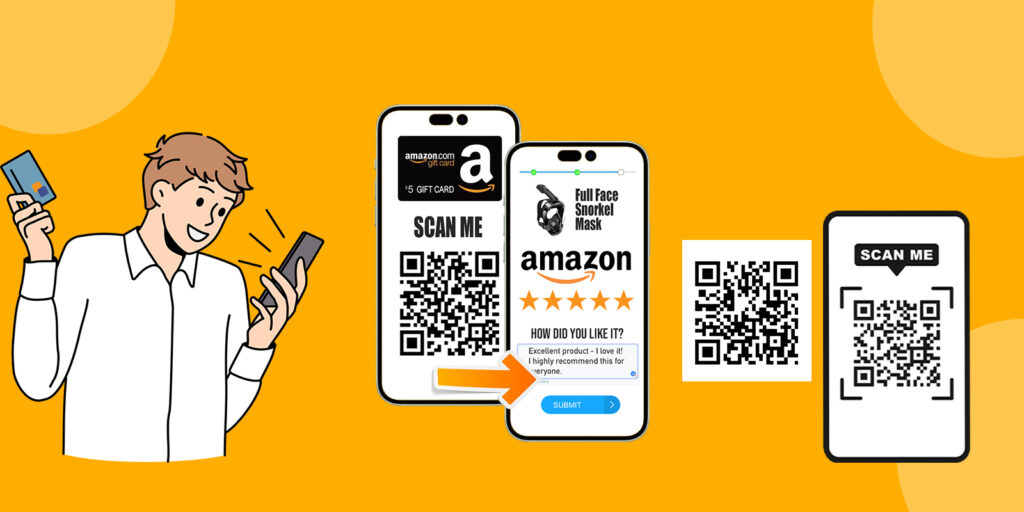
    You can add a QR code to your products or business cards, showing customers how to write reviews or ratings for the products. When they scan the code, they can go directly to the reviews section on the product page on Amazon.
  3. Additional content and promotions
    QR codes can be used to provide additional content such as videos or digital brochures. For example, Amazon customers can scan the code to access a video explaining how to use the product or an educational guide for it, which increases the value of the purchase hobby.
  4. Exclusive Offers and Discounts
    Simple promotions can be implemented through QR codes. When a specific code is used, customers can get exclusive discounts or offers. These codes can be published in newspapers, via email, or on social media.
  5. Augmented Reality (AR) Experience
    QR codes can be combined with AR technologies to provide an interactive shopping experience. For example, you can scan a QR code to view a product in your own environment using your phone. Amazon can use this technology to show how the product could look in your home.
  6. Track Orders and Improve Customer Experience
    QR codes can also be used to facilitate order tracking. By scanning the code, customers can see the status of their Amazon order shipments. This increases transparency and trust between customers and the store.
  7. Invitations and Special Events
    If you are hosting an event or special occasion, you can use a QR code to direct invitees to a list of products or gifts available from Amazon. This can make the purchase process easier for them and add a personal touch to your invitation.

Conclusion
Amazon QR codes are a powerful tool to improve customer experience and increase the effectiveness of marketing channels. Using the above methods, you can enhance communication and convenience for your customers, helping to transform the shopping experience into a fun and efficient one. If you have any other ideas on how to use QR codes, feel free to share.

12 Reasons Your QR Code Isn’t Working and How to Fix It

QR codes are powerful and easy-to-use tools, but sometimes you may run into issues that cause them to not scan or work properly. Here are 12 common reasons why your code might not work, plus how to fix each issue.

  1. Low image quality
    What’s causing the problem: If the code is low-quality or blurry, it can be difficult for apps to read.

Solution: Make sure you’re using a high-quality QR code generator and keep the image at a high resolution.

  1. Complex design or inappropriate colors
    What’s causing the problem: Overlapping colors or complex designs can make it difficult to read.
    Solution: Use simple designs with good contrast between the background and the code.
  2. The code is broken or damaged
    What’s causing the problem: If the code has been damaged, it may not work.
    Solution: Keep backup copies of the code, and print a new one if it’s damaged.
  3. Using incorrect information
    What’s causing the problem: If the code contains incorrect links or information, it won’t work as expected.
    Solution: Verify that the information you entered is correct before generating the code.
  4. Distance from the device used
    Cause of the problem: When QR codes are too small or too far from the device used for scanning, they may not be read.
    Solution: Make sure the code is the right size and easy to use, and is within the scanning range.
  5. Poor lighting
    Cause of the problem: Many readers require good lighting to scan effectively.
    Solution: Try scanning the code in a well-lit area. If you are using your phone, point the light source at the code.
  6. Insufficient QR Code app
    Cause of the problem: Not all apps support all types of QR codes.
    Solution: Make sure you are using a reliable and up-to-date app to scan codes.
  7. Wrong orientation
    Cause of the problem: The user may be far away or not focused while scanning the code.
    Solution: Explain to the user how to properly orient the device to get a better result.
  8. Unsupported format
    Cause of the problem: Some devices may not support certain code formats.
    Solution: Use common formats such as PNG or JPG when creating the code.
  9. Inactive Links

Cause of the problem: If the code leads to an inactive or deleted link, it will not work.

Solution: Check and back up the links; you need to make sure they are working.

  1. Insufficient Scan Button
    Cause of the problem: If the device used does not have the correct scan button or is not updated, this may cause the code to not be read.

Solution: Update the device or try another device to scan the code.

  1. Inappropriate Sip Location
    Cause of the problem: If the code is placed in a hard-to-reach place, such as inside a booklet or hard-to-open material, the user may have difficulty scanning.

Solution: Make sure the code is placed in a place that is easy to access and scan without obstructions.

Conclusion
By considering these causes and solutions, you can ensure that your QR code will work efficiently. If you encounter any issues or need further assistance, do not hesitate to seek support or consult with experts. Using QR codes correctly can improve the customer experience and increase the effectiveness of communication.